
Tutorial Lengkap Instalasi SSL Let’s Encrypt (Certbot) di Ubuntu untuk Nginx & Apache
Tutorial ini membahas langkah demi langkah cara memasang SSL gratis dari Let’s Encrypt menggunakan Certbot terbaru di Ubuntu Linux. Cocok untuk server production dan developer yang ingin mengamankan website dengan HTTPS.
🛠️ Diuji pada Ubuntu 22.04 LTS dan Ubuntu 25.04, tetapi juga kompatibel dengan Ubuntu 18.04 dan 20.04.
📦 1. Update dan Persiapan Awal
sudo apt update && sudo apt upgrade -y
Output:
Hit:1 http://security.ubuntu.com/ubuntu jammy-security InRelease
... (dipersingkat) ...
Reading package lists... Done
Building dependency tree... Done
Upgraded 15 packages
🔎 Tujuan: Memastikan sistem up-to-date untuk menghindari error dependensi.
🧰 2. Install Certbot dari APT (tanpa Snap)
sudo apt install software-properties-common -y
sudo add-apt-repository ppa:certbot/certbot -y
sudo apt update
sudo apt install certbot python3-certbot-nginx python3-certbot-apache -y
Output:
certbot is already the newest version (2.x)
python3-certbot-nginx is already the newest version
python3-certbot-apache is already the newest version
📌 Versi dari PPA lebih update dibanding bawaan default Ubuntu, dan tidak menggunakan Snap.
❗ Khusus Ubuntu 25.04:
- PPA bisa saja belum tersedia secara langsung.
- Jika tidak tersedia, kamu bisa menunggu update resmi atau gunakan metode alternatif.
🌐 3. Pastikan Domain Mengarah ke Server (DNS)
🔗 Arahkan domain (contoh: example.com) ke IP server kamu.
Cek dengan:
dig +short example.com
Output jika berhasil:
103.XXX.XXX.XXX
✅ Jika IP sesuai dengan server kamu, lanjut ke langkah berikut.
🌎 4A. Instalasi SSL untuk NGINX
🧪 1. Install NGINX (jika belum)
sudo apt install nginx -y
🔧 2. Pastikan Server Block Aktif
Contoh di /etc/nginx/sites-available/default atau custom:
server {
    listen 80;
    server_name example.com www.example.com;
    root /var/www/html;
}
🔍 3. Cek konfig NGINX:
sudo nginx -t && sudo systemctl reload nginx
Output:
nginx: the configuration file is ok
nginx: configuration file /etc/nginx/nginx.conf test is successful
🔐 4. Jalankan Certbot NGINX
sudo certbot --nginx
📌 Saat menjalankan perintah ini, kamu akan melihat beberapa popup interaktif di terminal:
- Email address untuk notifikasi expiry:
Enter email address (used for urgent renewal and security notices):
- Persetujuan ToS (Terms of Service):
(A)gree/(C)ancel: A
- Ingin share email ke EFF?:
(Y)es/(N)o: N
- Pilih domain yang terdeteksi (bisa langsung enter jika semua ingin):
Which names would you like to activate HTTPS for?
1: example.com
2: www.example.com
Enter the number(s) separated by comma, or leave empty to select all:
- Auto-redirect HTTP ke HTTPS:
Please choose whether or not to redirect HTTP traffic to HTTPS:
1: No redirect - Make no further changes to the web server configuration.
2: Redirect - Make all requests redirect to secure HTTPS access.

Select the appropriate number [1-2] then [enter] (press 'c' to cancel):
Output:
Successfully received certificate
Certificate is saved at: /etc/letsencrypt/live/example.com/fullchain.pem
🎉 HTTPS otomatis terpasang!
📌 Kamu juga bisa menentukan domain secara eksplisit tanpa auto-detect:
sudo certbot --nginx -d example.com -d www.example.com
📘 Perbedaan:
sudo certbot --nginx= auto-detect domain dari config NGINXsudo certbot --nginx -d= override auto-detect dan langsung proses domain- Cocok untuk banyak domain, custom block, atau multi-server config
🔁 5. Tes Auto-Renewal
sudo certbot renew --dry-run
Output:
Congratulations, all renewals succeeded
🔥 4B. Instalasi SSL untuk Apache
🧪 1. Install Apache (jika belum)
sudo apt install apache2 -y
🔧 2. Pastikan VirtualHost Aktif
Edit: /etc/apache2/sites-available/example.conf
<VirtualHost *:80>
    ServerName example.com
    ServerAlias www.example.com
    DocumentRoot /var/www/html
</VirtualHost>
Aktifkan site dan restart:
sudo a2ensite example.conf
sudo systemctl reload apache2
🔐 3. Jalankan Certbot Apache
sudo certbot --apache
📌 Seperti NGINX, kamu akan melihat popup:
- ToS
- Opsi domain
- Pilihan redirect otomatis ke HTTPS
Output:
Congratulations! Your certificate and chain have been saved
📌 Seperti pada NGINX, kamu juga bisa menambahkan opsi domain:
sudo certbot --apache -d example.com -d www.example.com
📝 Berguna untuk subdomain, wildcard (dengan metode DNS), dan server kompleks.
🔁 4. Tes Auto-Renewal
sudo certbot renew --dry-run
Output:
Congratulations, all renewals succeeded
📅 Auto-Renewal (Otomatis)
Certbot otomatis menambahkan cron job systemd. Cek dengan:
systemctl list-timers | grep certbot
Output:
certbot.timer ... Mon 2025-06-24 ... certbot.service
🛠️ Alternatif: Manual Cron Job
Jika kamu menggunakan versi Certbot non-systemd (misalnya versi manual / dari source), kamu bisa set cron job manual:
sudo crontab -e
Lalu tambahkan baris berikut (mengecek setiap hari jam 2 pagi):
0 2 * * * certbot renew --quiet && systemctl reload nginx
Atau jika menggunakan Apache:
0 2 * * * certbot renew --quiet && systemctl reload apache2
📌 --quiet akan menjalankan tanpa output kecuali ada error. Pastikan path certbot sudah dikenali di environment.
🧪 Tes cron job manual bisa dengan:
sudo certbot renew --dry-run
🧪 Verifikasi SSL
Cek via browser atau pakai:
curl -I https://example.com
Output:
HTTP/2 200
server: nginx
...
✅ Penutup
🎯 Sekarang website kamu sudah aman dengan HTTPS dari Let’s Encrypt! Semua proses dilakukan gratis, otomatis, dan dapat diperpanjang otomatis setiap 90 hari.
🚀 Cocok untuk produk komersial, startup, personal project, dan cloud environment seperti AWS, Herza Digital, GCP, dsb.
Jika ada error atau ingin setup otomatisasi lebih lanjut (Docker, CI/CD, multi-domain), kalain bisa komen dibawah.
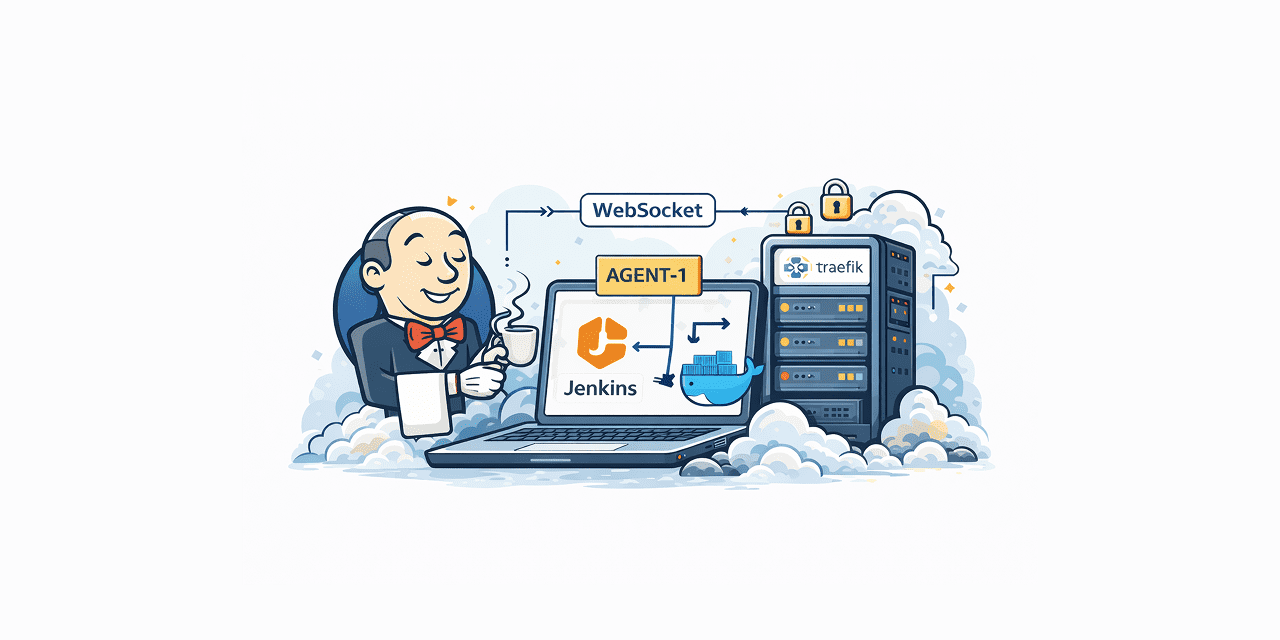
Panduan ini menjelaskan instalasi Jenkins production menggunakan Docker + Traefik (SSL otomatis via DNS Challenge Cloudflare), dengan fokus utama pada…

Kalau kamu sudah cukup lama pakai Proxmox, biasanya akan sampai di satu fase: bikin VM itu kok masih ribet dan…